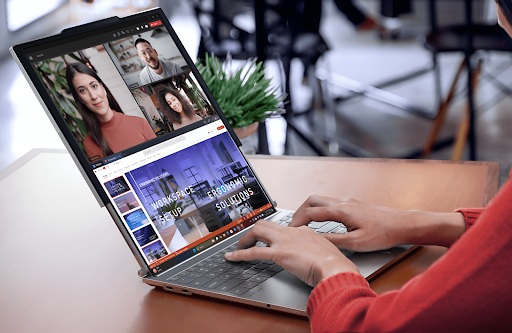
In many workplaces, people meet through a webcam more frequently than they do face-to-face. When the camera produces poor lighting, blurry visuals, or low color accuracy, your message can lose some of its power. People still hear your words, yet they feel less connected.
An AI laptop can change that story. Innovative camera features now operate inside the device, close to the chip, allowing you to react quickly and maintain a smooth on-camera appearance.
Therefore, business professionals, remote workers, and anyone who frequently participates in virtual meetings do not need studio lights or a complex setup. They only need to activate the right features and establish some simple habits.
Let us walk through seven practical tactics that can work anywhere, whether you are in a home office, a hotel room, or a busy open space. Each one helps you look clearer, more confident, and more natural on camera, no matter how the lighting changes.
1. Turn on AI auto‑light balancing
Harsh sunlight, overhead tubes, or a dark corner can all flatten your face or hide key details. Auto‑light feature on a modern AI laptop reads the scene frame by frame and the system lifts shadows, softens bright spots, and keeps your face at a steady level of brightness.
Instead of fighting with desk lamps, open the camera settings in your video app or system tool. Many business‑class AI laptop models now include an “auto exposure” or “auto lighting” option powered by local AI. Once active, it keeps adjusting as clouds move or room lights change.
What to check in your settings
- Look for “auto lighting,” “auto exposure,” or “AI lighting.”
- Test with a window behind you, next to you, and in front of you.
- Watch how the tool recovers detail in your face.
- Keep the setting on for all your meeting apps.
This single step often gives the bigger lift in video quality. People see your eyes and expressions with less effort, which supports trust on every call.
2. Use a clean, AI‑powered background
Backgrounds say a lot about your brand. A cluttered shelf or random hallway can distract a client or leader. AI background applications on an AI laptop now separate you from your surroundings with high accuracy. The system can blur the room, replace it, or sharpen only your outline.
A soft blur works best for most business calls. It feels natural, yet it hides mess and movement. For more formal meetings, a simple office‑style backdrop with your logo or brand colors can reinforce trust.
Smart background tips
- Avoid busy patterns or bright moving images.
- Pick one or two “default” backgrounds for your whole team.
- Use mild blur instead of heavy blur for a more natural look.
- Check the edges around your hair and shoulders for clean lines.
A steady, calm background shifts focus back to your face and your message. That small change can raise the perceived quality of your whole organization.
3. Enable AI eye contact correction
On camera, real eye contact often disappears. You look down at notes or at the faces on your screen, so viewers see your eyes drop. AI eye contact features are used on‑device models to nudge your gaze toward the camera when you speak, without changing your natural expression.
This makes a big difference for sales, leadership updates, and training sessions. People feel that you look at them, not at a screen. They stay more engaged, even in long calls.
To use it, open the camera or video settings and enable “eye contact,” “gaze correction,” or a similar term. Then run a quick test call and read a short script. Notice how your eyes still feel normal, yet the recording shows a stronger connection.
Use this feature with care for very sensitive talks, since some people prefer a fully natural look. For most daily meetings, it raises warmth and trust with almost no effort.
4. Smooth your look with gentle AI appearance tuning
Many AI laptops now include light “appearance” controls. These can soften skin tones, reduce harsh shadows, and adjust color balance so you look more like yourself under odd lights. The goal is not a filter for social media, but a clean, rested look that respects your real features.
Open your camera app and explore options like “skin tone balance,” “appearance,” or “low‑light enhancement.” Start with the lowest level. Then move one step up if you still see strong shadows or strange colors.
Healthy use of appearance features
- Stay honest to your real face and skin tone.
- Use small changes, not heavy smoothing.
- Check how it looks on different monitors.
- Ask a trusted colleague for quick feedback.
The right balance helps people see your true energy, not the impact of a long day under rough office lights.
5. Use auto‑framing to stay centered and ready
When you lean forward to make a point or move to reach something, your face can drift out of frame. Viewers then see a shoulder or part of your head, which breaks the attention. Auto‑framing on an AI laptop tracks your face and keeps you centered.
This feature works well for people who like to stand, move, or present with physical objects. The system uses local AI to crop and shift the frame in real time. Movements stay smooth, so the view does not feel jumpy.
Turn on “auto‑framing” or “auto compose” in your camera settings. Then stand or move a little to see how it follows you. Leave some space above your head and keep your shoulders inside the frame. Now every meeting starts with a clear, steady shot that feels professional.
6. Rely on AI to fix bad rooms and harsh light
Not every meeting room supports great video. Some rooms have bright lights overhead. Others have mixed light from windows and screens that shift all day. When travel enters the picture, the challenge grows.
An AI laptop with advanced on‑device models can reduce these problems without extra abilities. Many systems now blend several features at once. They tone down the strong backlight, reduce digital noise in dark spaces, and balance colors to keep skin natural.
When the room fights you
- Turn on low‑light or HDR video mode when the space feels dim.
- Move a little closer to the screen so your face fills more of the frame.
- Let the AI balance the light before you adjust blinds or lamps.
- Save one profile for “office,” one for “home,” and one for “travel.”
These small habits let you walk into almost any room and still show up as polished and present.
7. Build one‑click presets for any lighting
The best trick does not come from a single feature. It comes from a repeatable setup. Many AI laptop camera applications allow you to save presets. You can combine lighting, background, framing, and appearance into profiles you switch with one click.
For example, set up:
- “Morning window” for bright side light.
- “Late office” for overhead lamps and screen glow.
- “Hotel night” for poor warm bulbs and low light.
- “Executive call” for key clients and board meetings.
Name each preset in a clear way and share the setup steps with your team. Now every person in your company can reach a high standard on camera, even with mixed locations and different schedules.
This approach also helps IT or enablement leaders. They can train once, then give people a simple playbook instead of a long technical guide.
Why an AI laptop makes these tricks work better
Most of these features now exist in basic form on regular devices and apps. An AI laptop accelerates them and makes them feel natural. That happens because many modern business laptops now include a built-in AI engine near the main processor.
Video effects run on that engine instead of only on the CPU or cloud. The system then:
- Responds faster when the lighting changes.
- Keeps video quality high without slowing other work.
- Protects privacy because data stays on the device.
- Saves battery compared with heavy software filters.
For a company that depends on remote meetings, training, and customer calls, this difference adds up. Leaders do not only upgrade hardware. They upgrade how every person shows up on screen.
Final Thought
People do not connect to pixels. They connect to faces, eyes, and voices. When poor lighting hides those details, relationships lose strength. When a simple, smart setup reveals them, trust grows, even through a laptop camera.
These seven AI laptop tricks do more than polish an image. They help your team show care, attention, and respect in every call, no matter if the light helps or not. As your organization leans on hybrid work and digital meetings, this kind of presence turns into a quiet advantage.
You do not need a studio or complex instruments. You only need a thoughtful device, a few minutes with the settings, and a habit of checking your frame before others join. The people on the other side of the screen will feel the difference, meeting after meeting.